Your guide to accessible headings in WordPress
Introduction
Headings help people scan your page and find the information they need. They also help search engines understand how your content is structured.
Why headings matter
When a page has a wall of text, it is difficult to read. Headings break up content into manageable sections.
For people using screen readers, headings are a navigation tool. They allow users to jump between sections rather than having to listen to the entire page from the start.
How to structure your headings
Use headings to create a clear hierarchy. This is like an outline of your page.
The H1: Your page title
Every page must have one H1. It tells the user what the page is about.
- The H1 should be the most important piece of text on the page.
- A user should be able to read the H1 and know if they are in the right place.
The H2: Section titles
Use H2s to introduce the main sections of your page, such as “Services” or “Contact us”.
The H3 and below: Sub-sections
If a section is long, use H3s to break it down into sub-topics. Only use an H4, H5, or H6 if the content is nested within an H3.
Rules for writing headings
Follow these guidelines to make your content accessible.
- Use one H1 per page: Each page should have only one main title
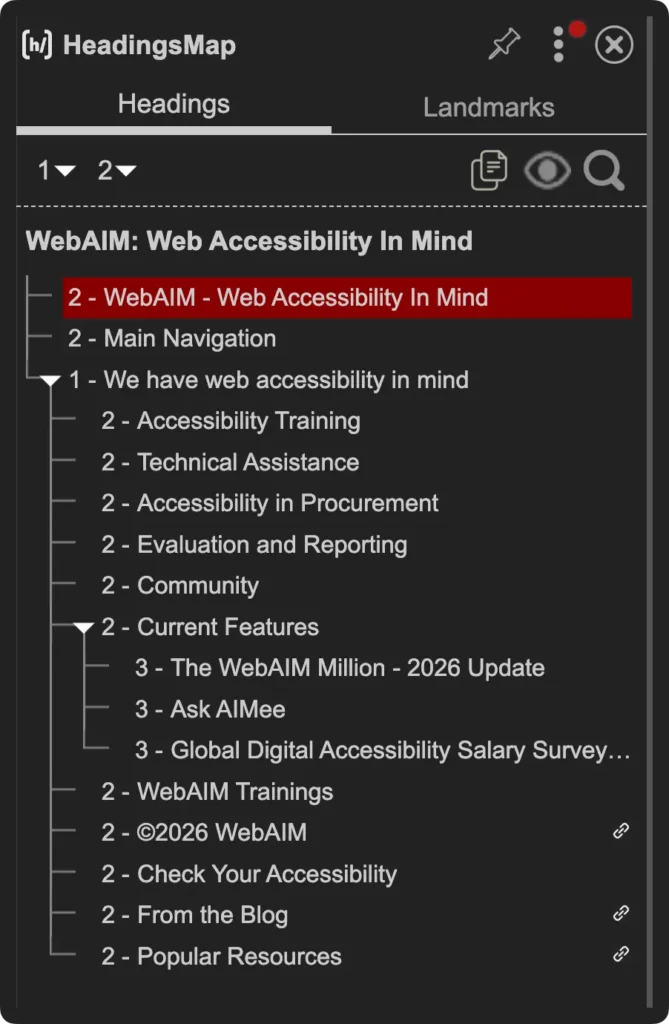
- Keep them in order: Do not skip levels. For example, do not jump from an H2 to an H4.
- Keep them short: Aim for 80 characters or fewer. If a heading is too long, it should probably be a paragraph.
- Be descriptive: Use headings to describe the content that follows. This helps users predict what they are about to read.
- Focus on structure, not style: Do not use a heading tag just to make text look bigger. Use CSS for styling and HTML for structure.
- Always include content: Do not use “empty” headings. Every heading must be followed by relevant information.
Exceptions to the order
- H1 may not be the first heading: On some sites, like e-commerce stores, you might see an H2 before the H1. This usually happens in navigation menus or sidebars that repeat across the site. Within the main content area, however, you should always follow a sequential order.
- Using hidden headings: You can use ‘hidden’ headings to give context to screen reader users. These are not visually hidden using CSS but are exposed to screen readers. This is meant to improve the reading experience for screen reader users.
How to style headings in WordPress
When using builders like Elementor or Bricks, lean more towards a global system by managing your typography through global settings first before making individual element styling changes.
Use CSS variables
Create custom CSS variables for your font sizes. This ensures your spacing and scales stay consistent across the site. You can use online tools like Fluid Type Scale or Utopia Fluid Type Scale Calculator.
:root{
--fs-s: clamp(1.25rem, 0.61vi + 1.1rem, 1.58rem);
--fs-m: clamp(1.56rem, 1vi + 1.31rem, 2.11rem);
--fs-l: clamp(1.95rem, 1.56vi + 1.56rem, 2.81rem);
--fs-xl: clamp(2.44rem, 2.38vi + 1.85rem, 3.75rem);
--fs-2xl: clamp(3.05rem, 3.54vi + 2.17rem, 5rem);
--fs-3xl: clamp(3.81rem, 5.18vi + 2.52rem, 6.66rem);
--fs-4xl: clamp(4.77rem, 7.48vi + 2.9rem, 8.88rem);
}
Set theme styles
Apply your H1 to H6 styles in the theme settings.
- Create a style guide page: Use dummy text to see how your headings, paragraphs, and lists look together.
- Elementor users: Go to ‘Site Settings’ > ‘Typography’. Turn off Elementor’s default fonts in the general settings to use your own.
- Bricks Users: Use the ‘Theme Styles’ in the settings menu. You can set different styles for blog posts and static pages using display conditions.
Design systems
Once your defaults are set, use a design system for specific pages.
- In Elementor: Map your ‘Global Fonts’ to your CSS variables.
- In Bricks: Use utility classes to manage different font sizes.
Summary
Remember, HTML defines the structure of your page. CSS defines how it looks.
Write your text normally. If you want a heading to be in capital letters, use the text-transform property in CSS. Do not type in all caps, as this can be difficult for some users to read.
Let’s strive to make the web a better place for everyone!
4 comments
Great explanation and a very useful resource regarding the Headings and Accessibility.
Thanks Imran! I hope the explanations are clear enough.
As a technical author for over 40 years, I thank you for providing clear guidance on heading structure. I now create websites to keep my mind busy and have seen way too many where headings just seem to have been thrown at the screen. Keep up the good work!
Hi Brian.
Thanks for the encouragement. I hope you enjoy building websites.
Yes, I’ve seen a website where the author used h2 headings for everything on the page including lists. There were no paragraph texts anywhere.
Leave a comment
Replying to .
Thanks — your comment is in
It's awaiting moderation and will appear after it's approved and the site is rebuilt.