Introduction
Following my previous tutorial on Advanced Custom Fields dynamic term background colours for WordPress, one question has been cropping up time and time again in my inbox: “This is brilliant, but what happens when I’ve got multiple terms attached to a single post?”
That’s a really good question. A lot of websites don’t limit themselves to single categories or taxonomy terms per post. You might have an event blog tagged with multiple locations like “Nigeria”, “England”, and “Canada” – and you’ll want each of those terms displayed with their own unique colour from your ACF fields.
Unfortunately, Elementor doesn’t (yet) give us native access to ACF term metadata (bit of an oversight, if you ask me), so we need to get our hands dirty with a custom solution.
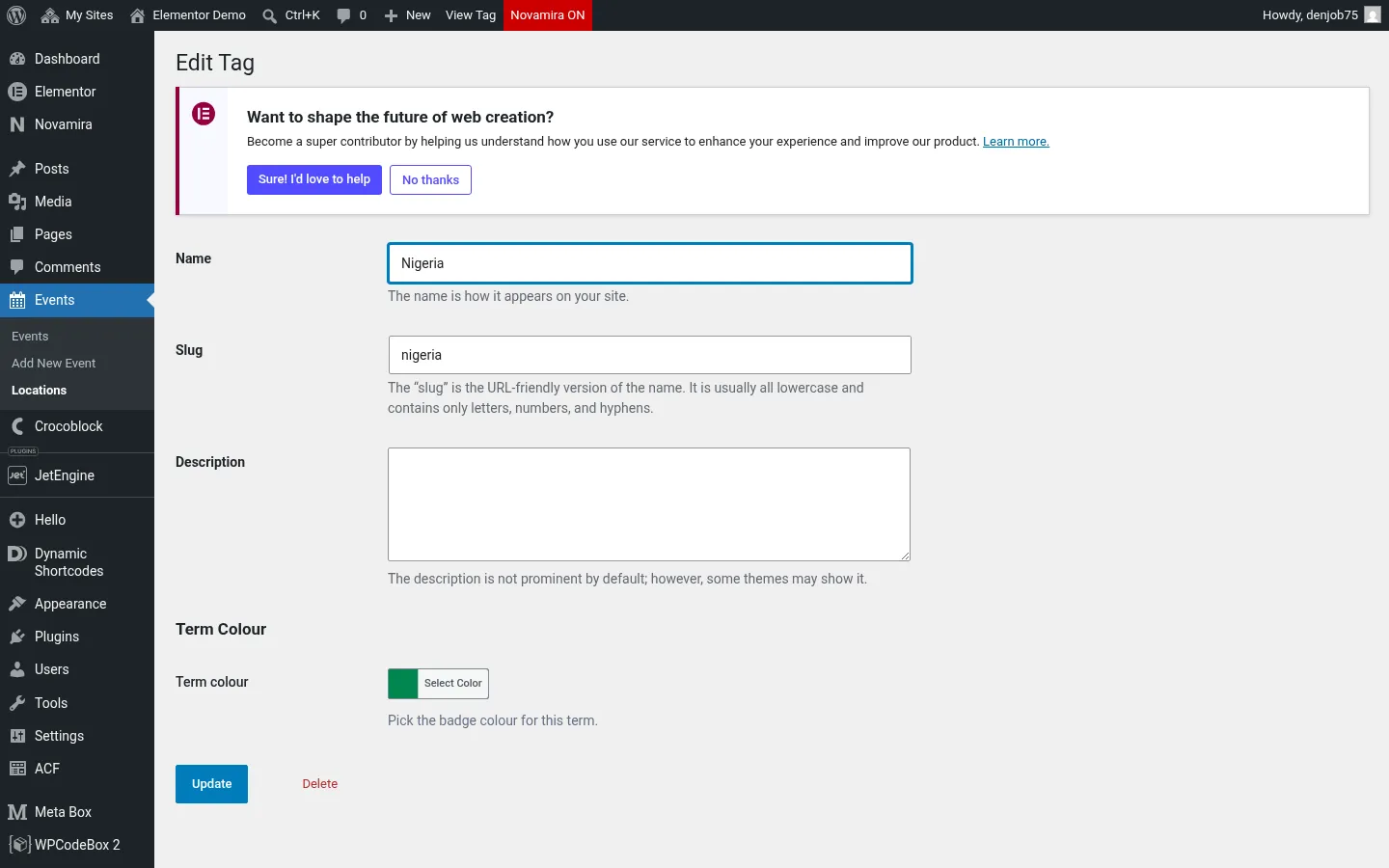
It builds on the colour field from that first tutorial: a simple ACF colour picker attached to each term, which is where every badge gets its shade.
What we’ll build
By the end of this tutorial, you’ll have:
- A flexible shortcode that displays all terms assigned to the current post
- Each term is styled as a pill-shaped badge with its own ACF colour
- Responsive design that works beautifully on mobile
- Customisable styling using CSS variables
- Optional archive page linking for better user navigation
Here’s what you’re aiming for — every location term on a single post, each rendered as its own colour-coded pill:

You can poke at the working version on my Elementor demo site.
Step 1: Creating the PHP Shortcode
You’ll need to add this PHP snippet using your favourite code snippets plugin (I recommend WPCodeBox) or pop it into your child theme’s function.php file.
false,
));
// Check if terms exist and no error occurred
if (is_wp_error($terms) || empty($terms)) {
return ''; // Return empty string if no terms or an error
}
// Start building the HTML output
$output = '';
foreach ($terms as $term) {
// Get the ACF colour field value for this term
$term_color = get_field($color_field_name, $term);
// Fallback colour if ACF field is empty
$bg_color = !empty($term_color) ? $term_color : '#6b7280';
// Build the list item using a CSS variable for the colour
$output .= '- ';
if ($link_to_archive) {
$term_link = get_term_link($term);
if (!is_wp_error($term_link)) {
$output .= '' . esc_html($term->name) . '';
} else {
// Fallback for link error
$output .= esc_html($term->name);
}
} else {
// Just display the term name
$output .= esc_html($term->name);
}
$output .= '
';
}
$output .= '
';
return $output;
}
/**
* Shortcode to display the current post's taxonomy terms list.
*/
function current_post_taxonomy_terms_list_shortcode($atts) {
$atts = shortcode_atts(array(
'tax' => 'category',
'color_field' => 'term_color',
'link' => 'false',
'post_id' => null
), $atts, 'dd_terms_list');
// Sanitise the attributes for security
$taxonomy = sanitize_key($atts['tax']);
$color_field = sanitize_key($atts['color_field']);
$link_to_archive = filter_var($atts['link'], FILTER_VALIDATE_BOOLEAN);
$post_id = !empty($atts['post_id']) ? intval($atts['post_id']) : null;
return generate_current_post_taxonomy_terms_list($taxonomy, $color_field, $link_to_archive, $post_id);
}
add_shortcode('dd_terms_list', 'current_post_taxonomy_terms_list_shortcode');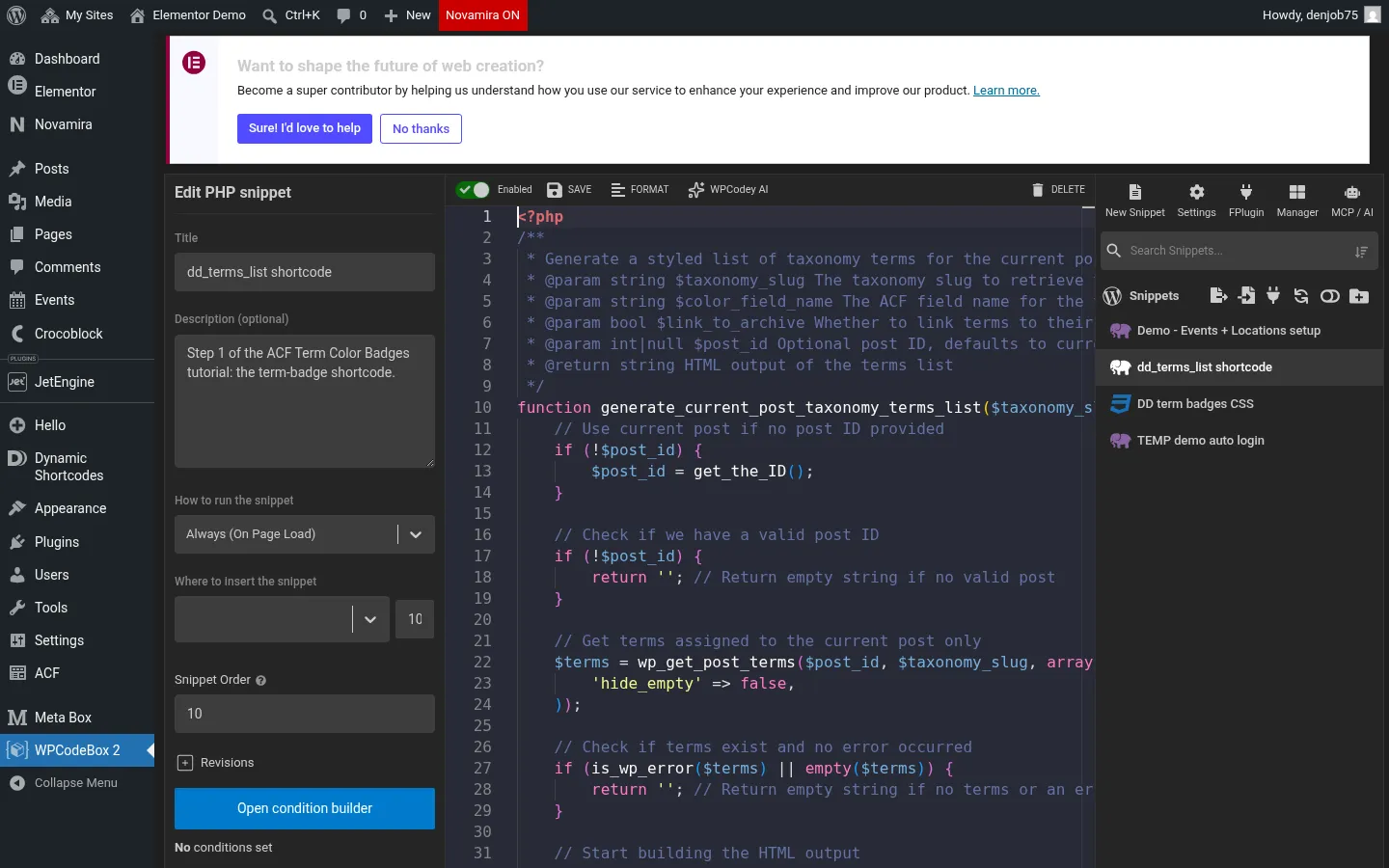
Step 2: Adding the Shortcode in Elementor
Pop over to your Elementor page or template, drag in a Shortcode widget, and use this code:
[dd_terms_list tax="location" color_field="term_color" link="true"]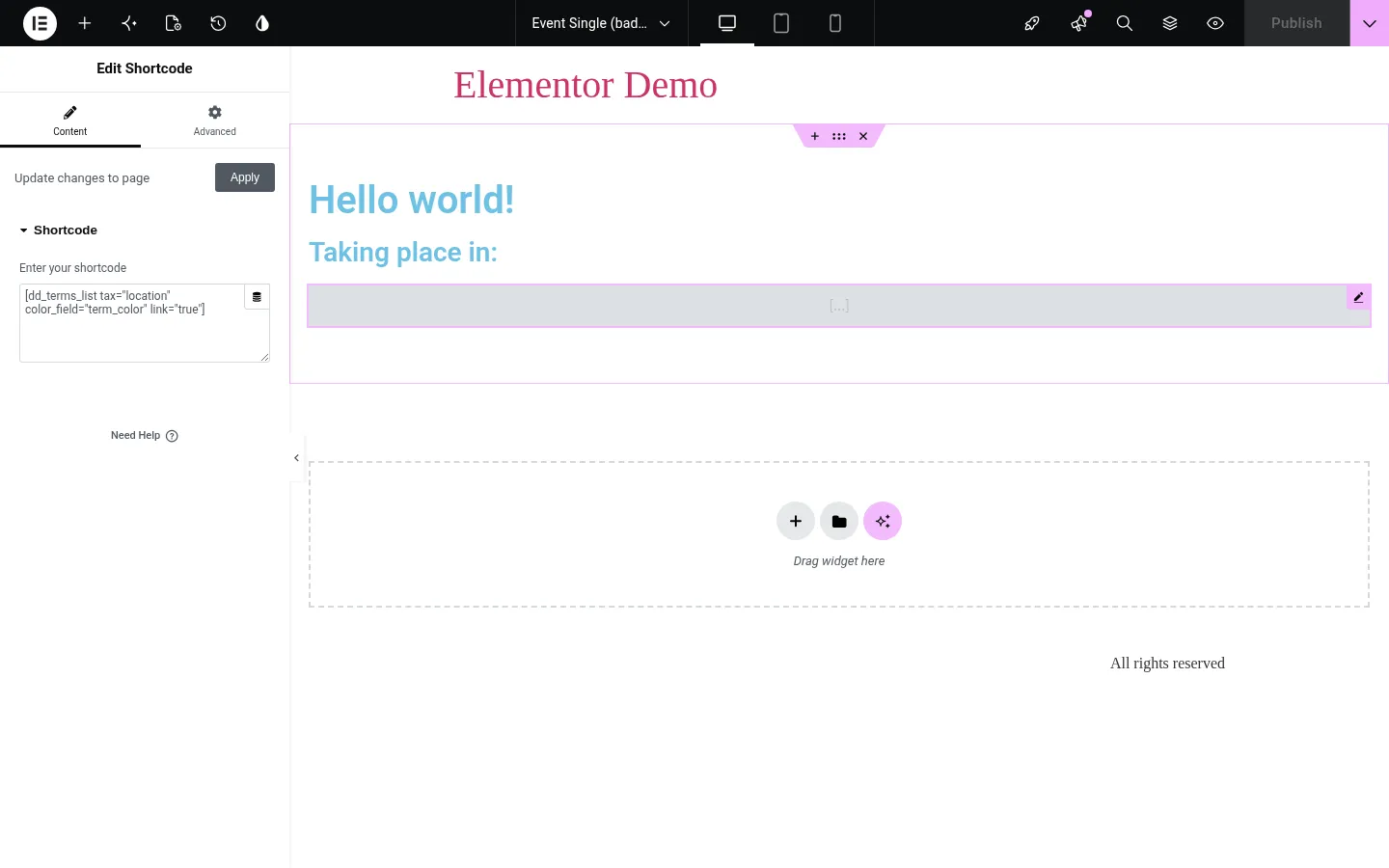
Shortcode Parameters Explained:
tax– Your taxonomy slug (e.g.,category,post_tag,product_category)color_field– The ACF field name you’ve set up for term colourslink– Set to"true"if you want terms to link to their archive pagespost_id– (Optional) Specify a different post ID if needed
The CSS magic
Here’s where the visual magic happens. Add this CSS to your theme’s stylesheet, Elementor’s custom CSS, or your code snippets plugin:
/* CSS Variables for easy customization */
:root {
  --dd-terms-gap: 0.5rem;
  --dd-terms-padding-y: 0.4rem;
  --dd-terms-padding-x: 0.85rem;
  --dd-terms-border-radius: 50px; /* Full pill shape */
  --dd-terms-font-size: 0.875rem;
  --dd-terms-font-weight: 500;
  --dd-terms-text-color: #ffffff;
  --dd-terms-text-shadow: 0 1px 2px rgba(0, 0, 0, 0.1);
  --dd-terms-transition: all 0.2s ease;
  --dd-terms-hover-transform: translateY(-1px);
  --dd-terms-hover-shadow: 0 4px 8px rgba(0, 0, 0, 0.15);
  --dd-terms-fallback-bg: #6b7280; /* Gray fallback */
}

.dd-terms-list {
  list-style: none;
  padding: 0;
  margin: 0;
  display: flex;
  flex-wrap: wrap;
  gap: var(--dd-terms-gap);
}

.dd-terms-list li {
  padding: var(--dd-terms-padding-y) var(--dd-terms-padding-x);
  background-color: var(--term-bg-color, var(--dd-terms-fallback-bg));
  border-radius: var(--dd-terms-border-radius);
  font-size: var(--dd-terms-font-size);
  font-weight: var(--dd-terms-font-weight);
  transition: var(--dd-terms-transition);
  box-shadow: 0 2px 4px rgba(0, 0, 0, 0.1);
  display: inline-block;
  position: relative;
  overflow: hidden;
}

.dd-terms-list li::before {
  content: '';
  position: absolute;
  top: 0;
  left: 0;
  right: 0;
  bottom: 0;
  background: linear-gradient(135deg, rgba(255, 255, 255, 0.2) 0%, rgba(255, 255, 255, 0) 50%);
  pointer-events: none;
  border-radius: inherit;
}

.dd-terms-list :is(li, a) {
  color: var(--dd-terms-text-color);
  text-shadow: var(--dd-terms-text-shadow);
  text-decoration: none;
  display: block;
  position: relative;
  z-index: 1;
}

/* Hover effects for linked terms */
.dd-terms-list li:has(a):hover,
.dd-terms-list li a:hover {
  transform: var(--dd-terms-hover-transform);
  box-shadow: var(--dd-terms-hover-shadow);
  cursor: pointer;
}

/* Focus states for accessibility */
.dd-terms-list a:focus {
  outline: 2px solid rgba(255, 255, 255, 0.5);
  outline-offset: 2px;
}
Final thoughts
There you have it! A robust solution for displaying multiple WordPress terms with individual ACF colours. The beauty of this approach is its flexibility – you can use it across different taxonomies, customise the styling to match your brand, and it’ll work seamlessly within Elementor.
Have you tried implementing this on your site? I’d love to see how you’ve customised it! Drop me a line in the comments below or share your results on social media.
Comments
No comments yet — be the first.
Leave a comment
Replying to .
Thanks — your comment is in
It's awaiting moderation and will appear after it's approved and the site is rebuilt.